Notion to Excel Converter
Export Notion databases and data sources to Excel (.xlsx) for free.
Your database export is ready
Need the full database in Google Sheets?
This converter exports a one-time snapshot of visible public data. Notion to Google Sheets Sync automatically handles full property names, hidden properties, private databases, and recurring updates.
View Google Sheets SyncBuilt for Notion databases
Notion databases are collections of pages with properties and multiple views, including tables, boards, calendars, lists, galleries, timelines, and more. This extractor looks for those rendered database views on the public page, then converts visible rows or cards into spreadsheet data.
Plain Notion pages can be exported with our document tools. Use the Excel converter when the page contains structured database items, linked databases, or data source views.
How it works
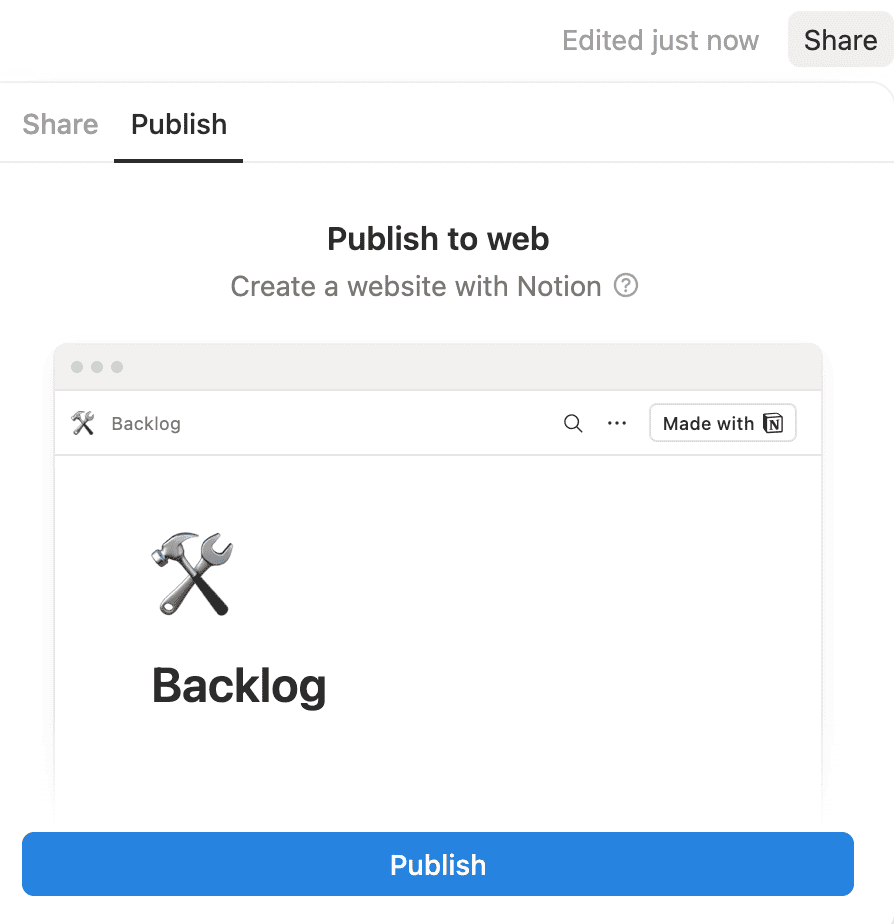
Step 1: Publish the Notion page
Open the Notion page that contains your database, click Share, then publish it to the web. The page needs to show the database view you want to export.
Step 2: Paste the public URL
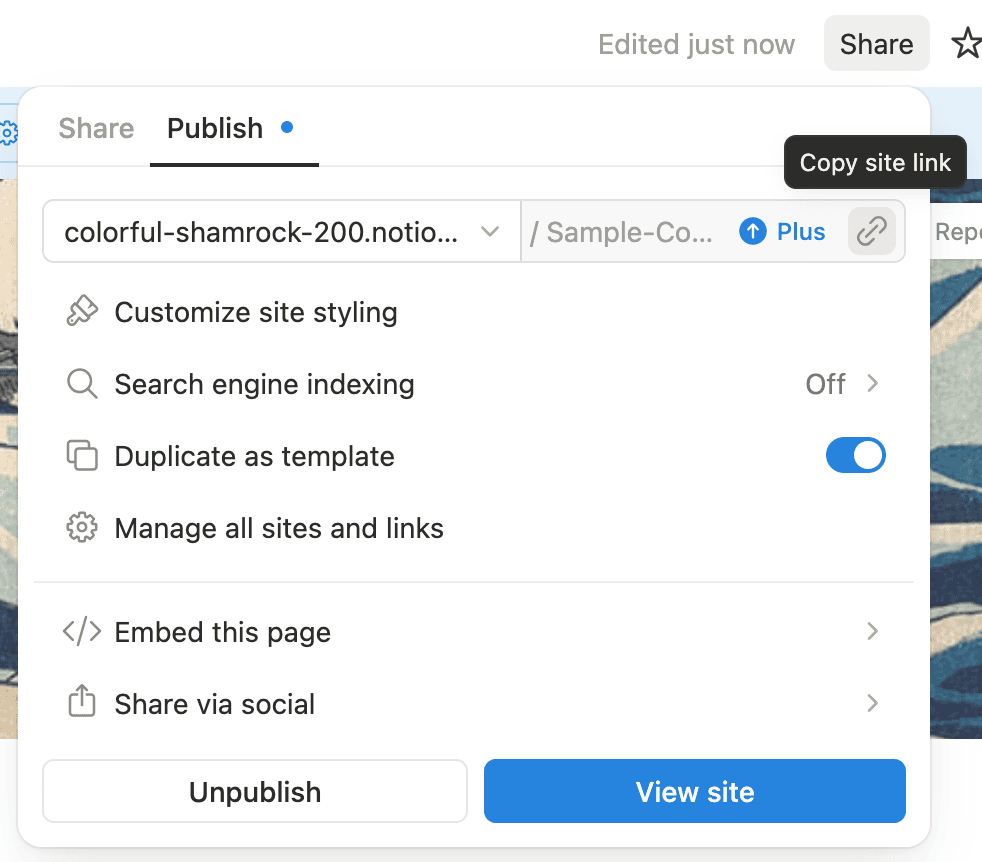
Copy the public Notion site URL and paste it into the converter. We render the page with a browser, scroll through the visible content, and look for database views.
Step 3: Download Excel
Table views export as structured rows and columns. Board, gallery, list, calendar, and timeline views export visible items, groups, property text, and page URLs where available.
Step 4: Open the workbook
Open the .xlsx file in Excel, Numbers, LibreOffice, or import it manually into Google Sheets.
"just want to let you know that this helped me BIG TIME! thank you!"
Comment from an r/Notion user
What gets exported
Best fit: table databases
Table views have the clearest column structure, so they produce the cleanest Excel output.
Good fit: visible cards and lists
Board, gallery, calendar, timeline, and list views can be exported as visible items with grouped text and links.
Linked databases and data sources
Linked databases can work when the linked view is visible on the public page and Notion renders the rows or cards.
Known limits
Hidden properties, filtered rows, private data, relation fidelity, formulas, and rows Notion has not loaded in the browser are outside this no-auth export path.
Frequently Asked Questions
- Is this for normal Notion pages or databases?
- It is for Notion databases and data source views. If you paste a plain document page with no database view, there may be nothing structured to export. For document exports, use our Notion to PDF exporter, Notion to Word converter, or Notion to Markdown converter.
- Can this export full private databases?
- No. This free converter does not ask for Notion authentication. It can only extract what the public page renders. For authenticated recurring exports, use Notion to Google Sheets Sync.
- Do linked databases work?
- Sometimes. If the linked database view is visible on the public page, we try to extract it. Linked databases are more fragile because the source database permissions, filters, hidden properties, and view layout all affect what Notion renders.
- Can I export to Google Sheets?
- Yes, manually. Download the Excel workbook and import it into Google Sheets. For large databases, private databases, or automatic Notion to Google Sheets updates, you can use our sync product.
- Why are some rows or columns missing?
- Public Notion views can hide properties, filter rows, group records, and lazy-load long lists. This tool exports the rendered view it can see. Switch to a table view with the columns you need visible for the best result.
- Do you store my database content?
- No. We render the public page to extract the spreadsheet data and return it to your browser. We do not store the extracted content.
- Need flashcards or document exports instead?
- Use our Notion to Anki converter for flashcards, or convert pages with the Notion to PDF exporter, Notion to Word converter, and Notion to Markdown converter.
Back up your Notion workspaces today
Get started