Notion to Markdown Converter
Convert any public Notion page to a clean Markdown (.md) file for free. Pure Markdown — no CSV companion files, no zip archive.
Your Markdown file is ready!
Your file has been downloaded.
Your document is safe — but are your Notion notes?
Notion Backups automatically saves your entire workspace to Google Drive, Dropbox, or OneDrive — every day.
Try Notion Backups free →Why not use Notion's built-in Markdown export?
Notion's built-in Markdown & CSV export gives you a zip archive containing your page as a .md file plus a separate .csv file for every database embedded on the page — even databases you never wanted exported. You then have to unzip, delete the CSVs, and clean up before the Markdown is usable.
Our converter gives you a single .md file. No zip archive. No CSV companions. Just Markdown, ready to drop into Obsidian, a static site generator, or a Git repo.
How it works
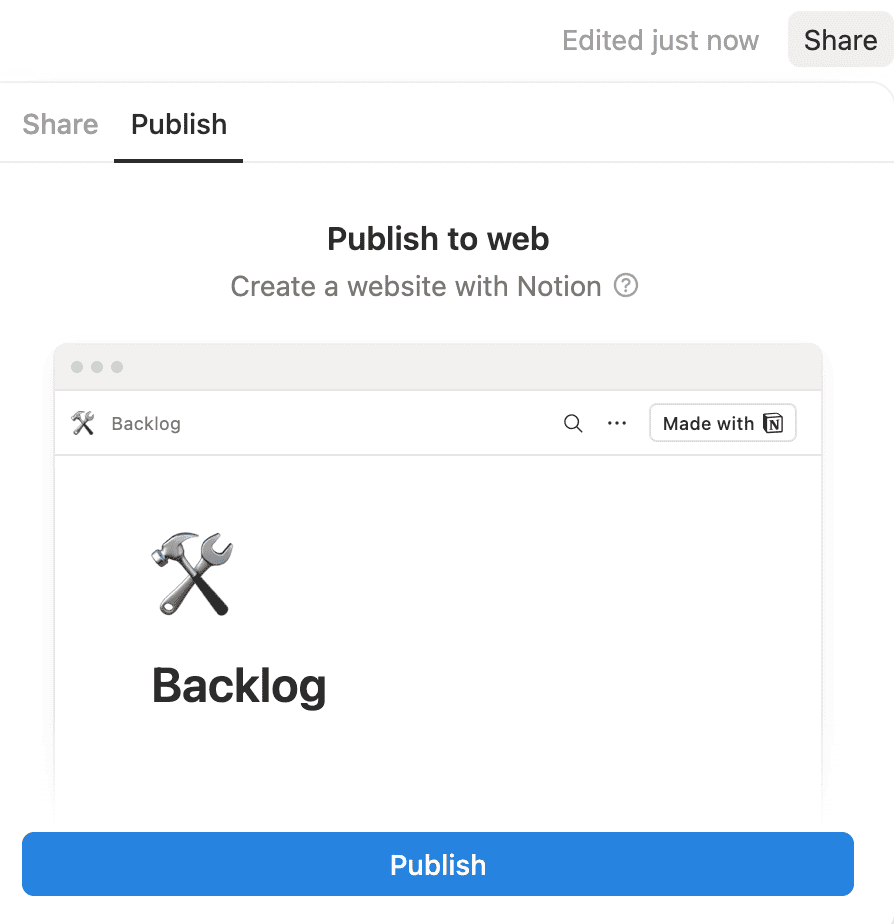
Step 1: Publish your Notion page to the web
Open your Notion page and click the Share button in the top-right corner. Select the Publish tab, then click Publish to make your page publicly accessible.
Step 2: Copy the page URL
Once published, you can get the URL by clicking the Copy site link button, or by clicking View site and copying the URL from your browser's address bar. The URL will look something like https://yourname.notion.site/Page-Title-abc123.
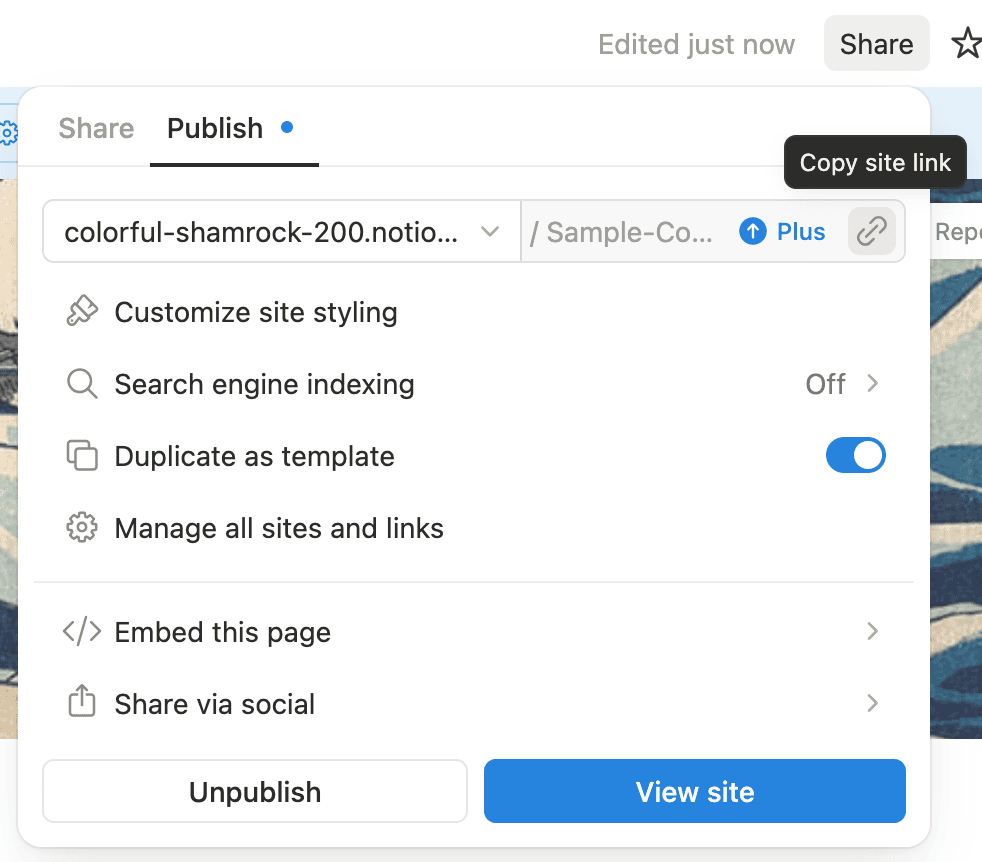
Step 3: Paste the URL and pick your options
Paste the URL in the field above. Use "Customize Markdown" to choose how images are handled, toggle YAML frontmatter, or keep Notion toggle blocks collapsible in the output.
Step 4: Generate and download
Click "Generate Markdown" and wait a few seconds. Your .md file will download automatically, ready to open in VS Code, Obsidian, Typora, or any Markdown editor.
What's preserved in the Markdown
- Headings (H1, H2, H3) →
#,##,### - Bulleted and numbered lists, including nested items
- To-do lists →
- [ ]and- [x](GitHub-compatible task lists) - Inline bold, italic,
strikethrough,inline code, and links - Code blocks → fenced
```style - Tables → GitHub Flavored Markdown tables with pipes
- Callouts and quotes →
>blockquotes - Toggles → either expanded as regular content, or collapsible
<details>blocks - Math equations →
$$…$$LaTeX - Images → linked, embedded as base64, or skipped (your choice)
- Subpage references → Markdown links
- Dividers →
---
Frequently Asked Questions
- How is this different from Notion's built-in Markdown export?
- Notion's Markdown & CSV export bundles your page into a zip archive that includes a
.mdfile plus a separate.csvfile for every database embedded on the page. If you just want clean Markdown, that's a lot of cleanup. Our converter gives you a single.mdfile — no zip, no CSV companions. - Does the output work with Obsidian, Hugo, Jekyll, Astro, and similar tools?
- Yes. The output is standard GitHub Flavored Markdown (GFM). Enable YAML frontmatter in the options if you're dropping the file into a static site generator that needs it (Hugo, Jekyll, Astro, Eleventy, Gatsby).
- How are images handled?
- You have three choices: Link keeps the original Notion CDN URLs (smallest file, but the URLs expire after a few hours — fine if you're publishing the Markdown somewhere that re-hosts images). Embed downloads each image and embeds it as a base64 data URI inside the Markdown (larger file, but self-contained and works forever). Skip drops images entirely, keeping only captions as italic text.
- Are inline formatting like bold, italic, and links preserved?
- Yes. We walk the rendered DOM to capture inline formatting exactly as it appears in Notion — bold, italic, strikethrough, inline code, links, and combinations of them are all preserved in the Markdown output.
- What about toggles? Do I lose their content?
- No. By default we expand every toggle and include its content in the output. If you'd rather keep toggles collapsible in the Markdown, uncheck "Expand all toggles" and we'll emit
<details>blocks instead — those render as expandable sections on GitHub, Obsidian, and most Markdown viewers. - Why does my page need to be public?
- We need to access your page to convert it. Without "Share to web" enabled, we can't fetch the page content. We don't store any of your content.
- Do you store or log my content?
- No. We don't store or log any of your content. The conversion process happens on serverless infrastructure.
- Can I convert private pages?
- Not with this free tool. For private page exports, check out our backup service which can export your entire workspace — including private pages — on an automated schedule.
- What Notion blocks are supported?
- Paragraphs, headings (H1–H3), bulleted and numbered lists, to-do lists, dividers, quotes, callouts, code blocks, images, tables, toggles, equations, bookmarks, embeds, videos, audio, and files. Embedded databases are shown as a placeholder note with a pointer to the original page.
- Can I convert multiple pages at once?
- This tool converts one page at a time. For bulk export of your entire workspace as Markdown, check out Notion Backups.
- Do you support other export formats?
- Yes. Convert your Notion pages to PDF with our Notion to PDF exporter, to a native Word document with our Notion to Word converter, extract database views with our Notion to Excel converter, or turn toggle blocks into .apkg/CSV flashcards with our Notion to Anki converter.
- Do you support on-premises or private cloud deployments?
- Yes. Contact sales@notionbackups.com for more information.
Back up your Notion workspaces today
Get started